

Building my blog, part 4: uploading images to S3 from Finder
How I automated blog image uploads to S3 from Finder, with copied URLs, renewed login, error notifications, and cancellation while authenticating.

Editorial illustration created with AI assistance for this series.
TL;DR Short on time? Click to read the summary.
Select an image, right-click, and receive a URL ready for the article. That was the convenience I wanted in my blogging routine. Automating AWS took the most work after the design.
The path began with an upload helper and became a Finder Quick Action. The successful case was easy to describe. The work appeared in the next questions: what happens when the session expires, when I abandon login, or when the upload fails?
Pages on Hostinger, images on S3
S3 stores objects: in this case, image files. Pages remain on Hostinger. Markdown contains the file’s public URL, and the browser retrieves the image from that address.
This separates image uploads from the website build. Adding a file to the repository does not execute an AWS upload. Some local assets also travel with the build; new editorial images use the S3 workflow.
A published image URL needs to work after my session ends. That is why the article does not use a temporary signed URL. The image prefix has public read access configured, while writing requires authentication. The upload script does not make any arbitrary private bucket public.
What I mean by image versions
Each upload receives a new name containing the year, month, a normalized name, and an identifier. An illustrative path would be:
images/2026/10/my-cover-unique-identifier.webpIf I correct a cover, I upload another file and update the article’s reference. The earlier image remains available until it is removed. That helps prevent a URL with long-lived caching from unexpectedly representing different content.
This differs from S3 Versioning, which retains versions of the same object within the bucket. Here I am describing new keys and new URLs. Having two files does not establish that native versioning is enabled.
Git history records changes to the reference in an article. By itself, it is not a backup of external files. Preserving and recovering images also requires looking after their storage.
A dedicated upload identity
The shortcut uses an AWS CLI profile with temporary credentials for a dedicated user. It does not depend on a root session or store a permanent access key inside the project.
The account and permissions are prepared beforehand. The helper uses that existing destination; it does not provision an entire AWS environment. The AWS CLI’s local browser login renews authentication without putting a password or code in an article, script, or conversation.
In the configured project, installation of the Quick Action starts from the repository root:
python3 blog/scripts/install-finder-upload.pyThis command belongs to the private repository and requires the environment described above. It is not a universal public installer for any AWS account. Reproducing the idea requires adapting the destination, profile, and permissions to your environment.
The Finder routine
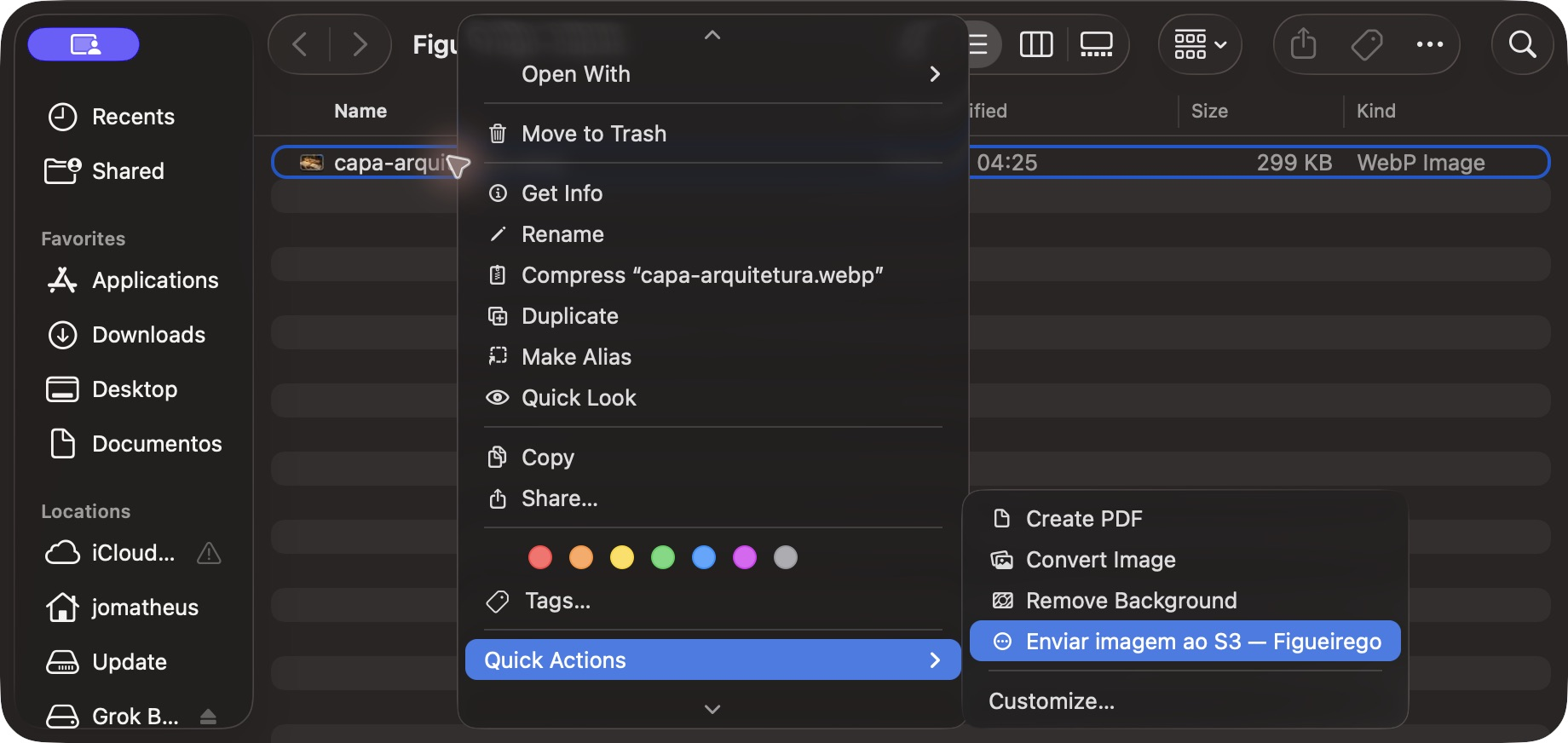
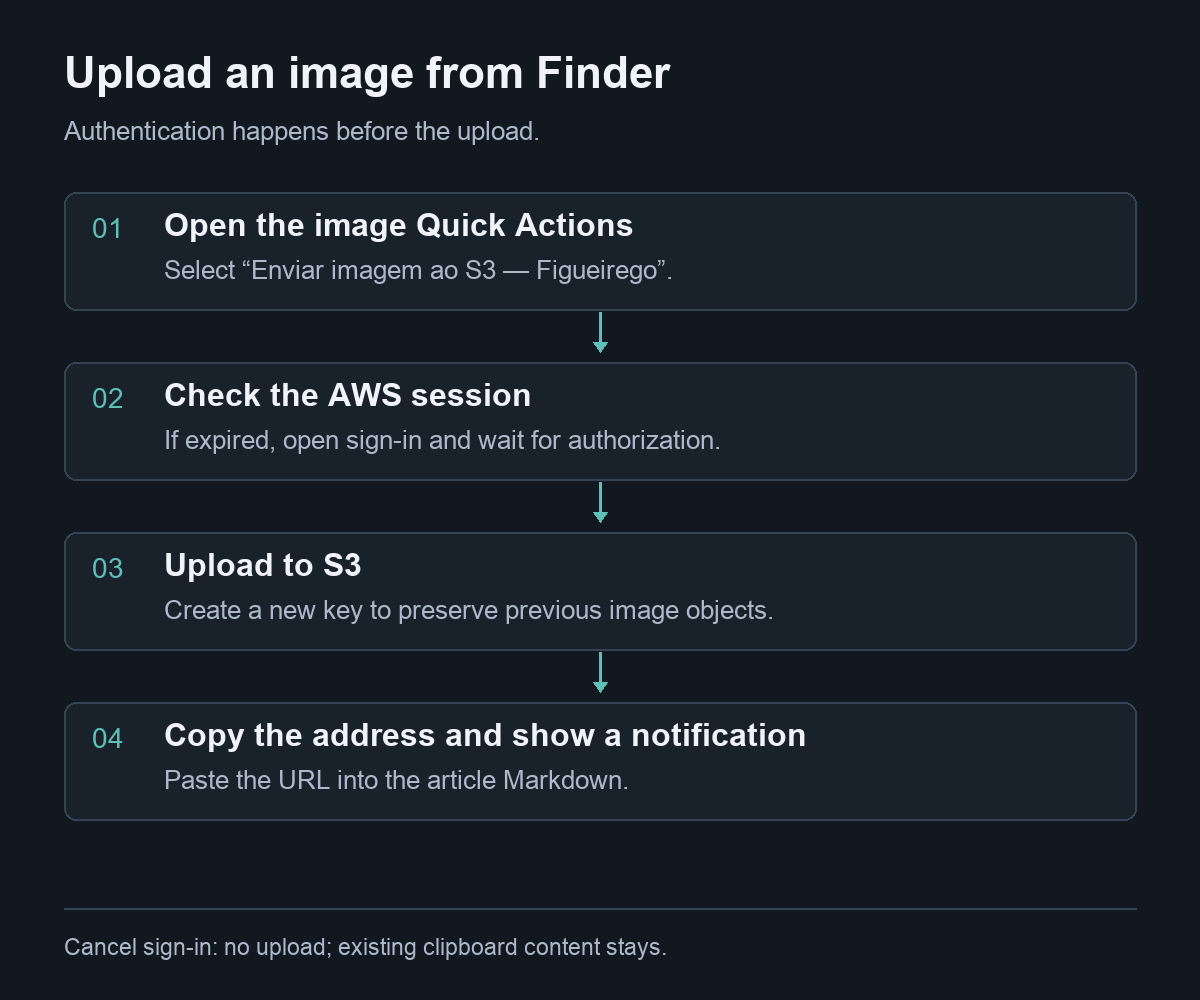
With the action installed, I select the image and choose Quick Actions → Enviar imagem ao S3 — Figueirego. After uploading, the action copies the URL and shows a completion notification. I do not need to open Terminal for the normal routine.
If the session expired, the shortcut opens browser authentication and waits for completion. Once login is authorized, it continues uploading. Testing the full path through Finder was important: running the helper in Terminal alone would not demonstrate that notifications appeared through the macOS action.
We also checked the public URL and the received image. A completion message helps, but it does not replace checking that the correct file is accessible outside the AWS session.
Cancellation is part of the interface
Waiting five minutes to discover that a login had been abandoned was a poor experience. The waiting step gained a window with Cancelar envio (Cancel upload), making it possible to explicitly end that attempt.
| Situation | Expected behavior |
|---|---|
| Valid session | Upload, copy the URL, and announce completion. |
| Expired session | Open login and continue after authentication. |
| Cancellation while waiting for login | Notify, do not upload the image, and preserve clipboard contents. |
| Another attempt after cancellation | Allow the workflow to start again. |
Closing the browser tab alone is not equivalent to pressing the cancellation button. And that button cancels the authentication wait; it does not promise to interrupt an upload that has already started.
We tested the waiting step first with simulated AWS behavior and then with real login. The checks answer different questions: simulation helps control the scenario; the real test confirms the integration that will be used.
What still requires care
I do not automatically remove an old image just because I uploaded another one. A draft, another article, or a feed already received by a reader may still refer to it. Cleanup needs to account for those references.
If the upload succeeds but copying to the clipboard fails, that does not undo the uploaded object either. Distinguishing an upload failure from failure in the final convenience step avoids unnecessary repeat uploads.
Automation shortened the routine. The lesson was to give cancellation and recovery proper attention too: a tool that is simple to use should explain when it finished, when it failed, and what happened to the file.



Comments
Continue the conversation on Disqus.
Open conversation on DisqusThe blog theme changed. Send or copy any draft before refreshing the comments.